Activate your license
Activating takes about 30 seconds and works offline. One key unlocks the app on every Mac you own.
All three apps need macOS 14 Sonoma or later. Comma and Lockstep are regular Mac apps. Blinders is a Safari extension and works in Safari only.
1. Find your key
Your license key is a long line of text that starts with SNDRY1. You have it in two places:
- the email from [email protected], titled “Your … license key”. Check your spam folder if it isn’t there.
- the page you land on after paying. It shows the key and a Copy Key button, and the link keeps working, so bookmark it.
Paid with Bitcoin? The key arrives as soon as the payment confirms: a few seconds on Lightning, about 10–20 minutes on-chain.
Can’t find it? Have the key sent again to the email you bought with.
2. Open the License window
Install the app first if you haven’t: download it from its page, open the .dmg and drag the app to Applications. Then open the app. Until it’s activated, each app opens its License window by itself the first time you open it. If it doesn’t, in the menu bar at the very top of the screen (just right of the Apple menu), click the app’s name and choose Activate License… (just License… in version 1.0.1 and earlier).
- Comma: Comma menu, then Activate License…. You can also click Activate License… in the trial banner.
- Lockstep: Lockstep menu, then Activate License….
- Blinders: Blinders menu, then Activate License…, or click the trial badge at the top of the Blinders window, or the eye icon in the menu bar. In Safari you can also click the Blinders button in the toolbar and choose Activate License….
The menu bar only shows the app’s menu while the app is in front, so click the app’s window or Dock icon first.
3. Paste the key and click Activate
Paste the whole key into the box (Command-V) and click Activate. The window says “Licensed. Thank you for buying it.” and you’re done. If you copied the key just before opening the window, it may already be filled in.
Blinders: also turn it on in Safari
The license only unlocks Blinders’ extra switches. Hiding Shorts is free and doesn’t need a key at all, but it only works once Safari runs the extension. Blinders works in Safari 18.4 or later on macOS 14 Sonoma or later; Chrome, Firefox, Arc, Edge and Brave aren’t supported yet.
- In Safari, choose Safari > Settings, click Extensions and tick Blinders.
- Go to youtube.com, click the Blinders button in the toolbar (it shows a red badge) and choose Always Allow on This Website. This is the step people miss: until you do it, Safari doesn’t let Blinders touch the page. (Or, with Blinders selected in Extensions settings, click Edit Websites and set youtube.com to Allow.)
- Reload any YouTube tab that was already open. Shorts disappear once the page reloads, and the Blinders window says Working on YouTube.
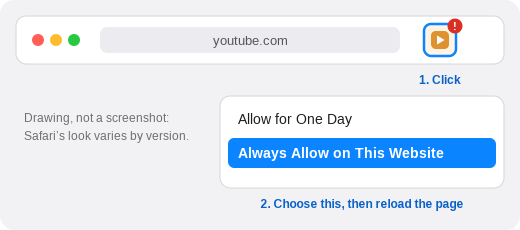
If you use Safari profiles, do step 1 for each profile. For private windows, turn on Allow in Private Browsing in the same settings. More Blinders help.
The Activate button on the license page
Your license page has an Activate in … button. With the app installed it opens the app and fills in the key for you. This only works from a web page: many email apps, including Gmail, don’t let you click links like that, which is why the email gives you the menu steps instead.
If it doesn’t work
“This key couldn’t be verified”
The key was probably copied incompletely. Copy the whole key, starting with SNDRY1. and ending at the last character, with no spaces or line breaks added. The Copy Key button on your license page copies it exactly. If it still fails, make sure you have the latest version (download it again from the app’s page) and email us.
“That doesn’t look like a Sundry license key”
What was pasted isn’t a complete key. Copy it again from the email or the license page, including the SNDRY1. at the start.
“This key is valid, but it isn’t for …”
A single-app key only unlocks the app you bought. The Sundry Bundle key unlocks Comma, Lockstep and Blinders. If you bought the bundle and see this, email us.
“This key is for a newer version of the app”
Download the latest version from the app’s page, replace the old one in Applications and try again.
I can’t find License… in the menu
Click the app’s window or its Dock icon so it is the front app, then look at the menu bar at the top of the screen, right after the Apple menu. License… is in the menu named after the app. If you only see Safari’s menus for Blinders, open the Blinders app itself once from Applications.
I use more than one Mac
Use the same key on each Mac. There’s no limit and no sign-in.
Still stuck? Email [email protected] and say which app and what the window says.